
Creating an Account with Legacy CIP
Old process
This guide assumes that Galileo's integrated ID verification process is the Legacy CIP process. No new clients are being onboarded with this process. Go to the updated Customer ID Verification guide for the latest information.
This guide describes the procedure for creating a new customer account using the Create Account endpoint with legacy CIP integration. With these endpoints you can optionally issue a card and deposit funds into the account at the same time that you create the new account.
Note
When creating an account for a new customer you must perform KYC and CIP. Consult the Legacy Customer ID Verification (KYC/CIP) guide for instructions. You should also read the About Accounts guide to familiarize yourself with Galileo's account structure and conventions.
Follow this procedure to:
- Onboard a new customer for a physical card.
- Onboard a new customer for a virtual card.
- Create a secondary account for a different customer than the primary account holder, such as a spouse or child.
Do not follow this procedure to:
- Add a secondary account to an existing customer; instead, see the Adding an Account guide.
- Add an overdraft account; instead, see the Creating an Overdraft Account guide.
- Create an instant-issue card; instead, see Setup for Instant Issue.
- Create an account for a Digital First account, where you provide a digital version of the card for customers to use while the physical card arrives; instead, consult Digital First cards in the Choose a Card Strategy guide.
- Break out the account-creation steps into component parts, such as passing Galileo CIP before creating an account; instead, use Start Enrollment and Complete Enrollment. For directions see Start Enrollment process in Legacy Customer ID Verification (KYC/CIP).
Result of calling Create Account
When Create Account has run successfully, these new items are created in the Galileo system. See New account creation in the About Accounts guide for details.
- Customer record — Contains the customer's personal data such as address, date of birth, and contact information.
- Account record — Contains general account information.
- Card record (for card products) — Contains card information. You can receive unmasked PAN/CVV/expiry date values only if you are PCI compliant.
Parameters
This table explains the parameters that are specific to the Create Account endpoint. See the Create Account reference for details.
| Parameter | Usage |
|---|---|
accountNo | Populate only for instant-issue cards. For all others leave blank. |
id | Required for Galileo CIP. Primary ID number. See Using the id and idType parameters for instructions. If you are not using Galileo CIP you may still populate these ID fields for your own records. |
idType | Required for Galileo CIP. Required when id is populated. Primary ID type. Your product settings might require idType: 2 (SSN) for the primary ID. See the Customer ID Types enumeration for valid values. |
id2 | Optional or required for Galileo CIP, depending on your product settings. Secondary ID number. |
idType2 | Required when id2 is populated. Secondary ID type. |
id3 | May be required when Galileo is the BIN sponsor in Mexico. depending on your product settings. Tertiary ID number. |
idType3 | Required when id3 is populated. Tertiary ID type. |
locationType | Do not populate. |
location | Do not populate. |
locale | Customer localization preferences. If the customer address is outside the U.S., pass a non-_US value for this parameter to disable U.S. address validation. Default: EN |
| Customer profile parameters | Required for Galileo CIP and for the customer record. mobilePhone parameter is required for provisioning cards to mobile wallets. You must also populate mobilePhoneCountryCode if you pass any phone parameters. |
webUid | Do not populate. |
webPwd | Do not populate. |
secretQuestion | Do not populate. |
secretAnswer | Do not populate. |
incomeSource | The name of the customer's employer or income source. |
occupation | Job title of the customer. |
nationality | Current country where the applicant is a citizen. May be required Galileo is the BIN sponsor in Mexico. |
placeOfBirth | Birthplace of the applicant, in ISO 3166 format. May be required when Galileo is the BIN sponsor in Mexico. |
curp | Create Account only.CURP identifier. May be required when Galileo is the BIN sponsor in Mexico. |
politicalAffiliation | Whether the applicant is a PEP. May be required when Galileo is the BIN sponsor in Mexico. |
kycRefNo | The reference number from your KYC process to link to the customer record in the Galileo system. May be required when Galileo is the BIN sponsor in Mexico. |
monthlyIncome | The monthly income of the applicant. May be required when Galileo is the BIN sponsor in Mexico. |
prodId | Required. The identifier for the product the customer is signing up for. Galileo generates a unique product ID for each of your products. |
loadAmount | Populate only if the product is configured to deposit funds into the account at creation time. |
loadType | Required when loadAmount is populated; valid values are created in cooperation with Galileo. |
externalAccountId | This field is for your own purposes. Galileo stores but does not process this parameter; however, it can be updated with the Update Account endpoint (active accounts only), you can retrieve it using the Verify Account endpoint, and it is provided in the RDFs. You can use this parameter in cooperation with your card embosser to dynamically select card art, or you can input customer identifiers for your own back-end systems. |
primaryAccount | Populate only when creating a secondary account. |
sharedBalance | Required when primaryAccount is populated. Pass 1 when creating a secondary account that will transact on the same balance as the primaryAccount. Pass 0 if the account balances will not be shared. |
userData | This field is for your own purposes. Galileo does not process this parameter and it cannot be updated using the Update Account endpoint. You might want to use this field to track internal groups or advertising campaigns or for other similar purposes. |
offline | Do not populate. |
verifyOnly | Pass 1 to verify the parameter values in your API request without creating an account or running CIP. |
cipStatus | Populate only when using Galileo CIP. See Overriding your ID verification setting for more information. |
embossLine2 | A second line to be printed under the name on the card. |
providerAssessedFee | Do not populate. |
loadFromAccountNo | For depositing funds into the new account from another account in the same program. You must also pass loadAmount and loadType when populating this parameter. |
sweepDate | Do not populate. |
expressMail | Populate to ship the card via accelerated delivery. Valid values come from your emboss vendor. |
shipToAddressPermanent | Pass 1 to make the ship-to address information permanent, meaning that you don't have to provide a new ship-to address every time you send a new card to the embosser. |
shipTo parameters | Populate for physical cards, when the shipping address is different from the primary address. |
businessName | Required when prodId is a business account. See businessName parameter for the validation rules. |
mobilePhoneCountryCode | Required when any of the phone parameters are populated. This value determines how the phone numbers are validated |
authorizedUser | Specifies whether the applicant is to be an authorized user for an existing account. When this parameter is 1, then primaryAccountmust be populated and sharedBalance: 1. |
Account-creation workflow
Consult this flowchart and explanation for the Create Account endpoint workflows when using Galileo's Legacy CIP. To see the workflow without integrated CIP, see Create Account without integrated ID verification.
Note
Call the Create Account endpoint only once per customer when onboarding. Because these endpoints create a customer record, it is important that only one record be created per customer.
Create Account using Legacy CIP
This flowchart shows the logical progression of the Create Account endpoint and subsequent backend processes when using Galileo's integrated CIP. The actual sequence of events in the Galileo system may vary.
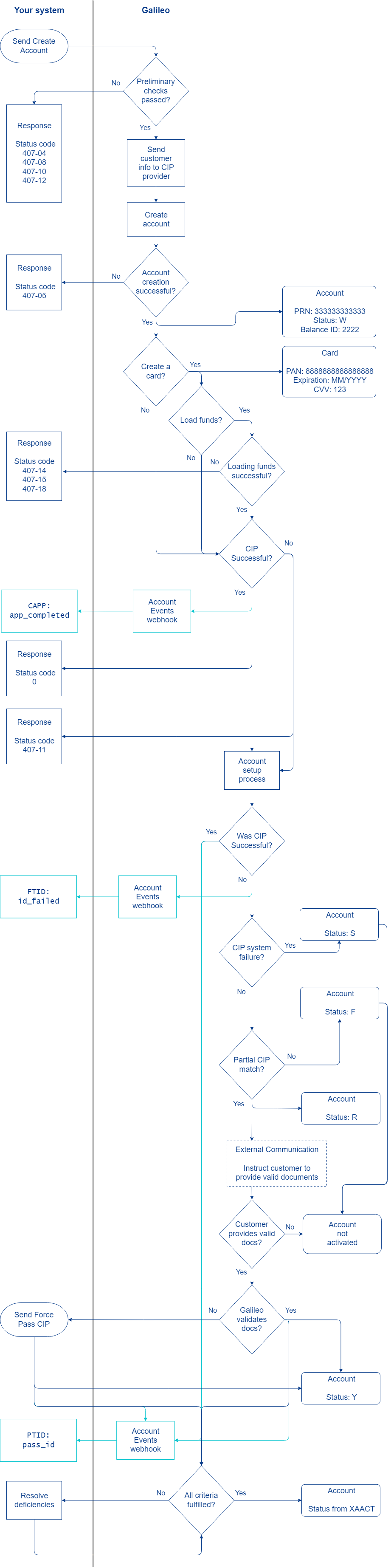
- Retrieve customer information from your web page or mobile app.
- Populate the Create Account request with that information and send.
- Galileo performs a number of preliminary checks. Failures return the status codes shown in the diagram.
- Galileo sends the customer information to its CIP provider.
- Galileo creates the customer account with
status: W(Waiting to Be Processed). - According to product settings, Galileo creates a card object and deposits funds into the account. The account that receives the funds is identified by the balance ID, also called "Galileo account number." If depositing funds is not successful, the status codes shown in the diagram are returned. The card object contains the PAN, the expiry date, and the CVV. The full contents of this object are returned to you in the API response only if you are PCI compliant.
- Galileo verifies whether CIP was successful:
- If CIP was successful, Galileo sends you two messages:
- API response with
status_code: 0(successful). - Account Events webhook message
CAPP: app_completed.
- API response with
- If CIP was not successful, Galileo sends these messages:
- API response with
status_code: 407-11(CIP failed) with theR,ForSverdict in thecipfield. - Account Events webhook message
BFID: fail_id.
- API response with
- If CIP was successful, Galileo sends you two messages:
- Galileo launches an account setup process, which verifies whether all criteria for account creation have been fulfilled. If CIP was not successful Galileo moves the account to
status: F(failed CIP). You take your next steps according to the failed CIP status that was returned:S— System failure. CIP was not performed because the CIP-related data was not valid. See Testing ID verification in the Customer ID Verification (KYC/CIP) guide for CIP validations.F— Failed. The customer is on a watch list or is unlikely to be a real person and therefore does not qualify for an account. The account will not be activated.R— Referral. The customer is likely a real person because there was a partial match for the personal information and identifier. In this case, either you or Galileo performs further steps to identify the customer, such as requesting that valid documents be sent.- If Galileo completes validation and the customer passes, Galileo moves the account to
status: Nand sends the Account Events webhook messagePTID: pass_id. - If you complete validation and the customer passes, you call the Force Pass CIP endpoint to move the account to
status: Nand you receive the Account Events webhook messagePTID: pass_id.
- If Galileo completes validation and the customer passes, Galileo moves the account to
- Galileo runs an account setup process to determine whether other criteria for the account have been fulfilled, according to product settings. When all criteria are fulfilled, the Galileo system checks the XAACT product parameter for how to set the account status:
- First character — Account active/inactive (Y/N)
- Second character — Account status
- Third character — Card status (if any)
For example, if the product is a card account, and XAACT is YNX, then when account setup is completed these are the settings:
- Account
active: Y - Account
status: N(active) - Card
status: X(set to emboss)
See Lifecycle of a card in Setting Up a Card Program for the next steps when the account has a card.
Note
The account setup process is a cron job with an interval between 5 and 30 minutes, according to your product settings. For this reason, you will receive the
CAPP: app_completedorPTID: pass_idwebhook messages and the API response before the account is usable. See the Activating a Card guide for more information. To see account status, call an endpoint such as Get Account Overview or see Retrieving account information in the About Accounts guide for a list of endpoints that retrieve the account status.
View the new account
Use the Get Account Cards endpoint to retrieve account status and other information. Consult Retrieving account information in the About Accounts guide for a list of endpoints and the specific account information they retrieve.