

Setting Up Instant Debit Transfers
This guide describes the developer implementation for Instant Debit Transfers. Use this guide to build the necessary infrastructure that enables your account holders to link external debit cards and initiate transfers. For a high-level overview of the business value, key capabilities, and compliance requirements, see the Instant Debit Transfers guide.
Result of setting up Instant Debit Transfers
Account holders who link their external accounts can move funds between their Galileo account and an external debit card.
Prerequisites
To launch Instant Debit Transfers, you must establish a sponsor bank relationship with Sunrise Bank to handle daily settlement. Galileo is integrated with Sunrise Bank as the acquiring sponsor for the Visa Direct® network.
If Sunrise Bank is already your program's sponsor, Galileo configures your existing setup for Instant Debit Transfers.
If you use a different sponsor bank, you must open a settlement FBO account at Sunrise Bank. This account handles the daily settlement of funds with the card network.
To get started with bank certification and your technical implementation, contact Galileo.
Workflow
These entities participate in the funds transfer flow:
- Account holder — Your customer, who has at least one account on your platform.
- Your system — Your mobile app or website, which provides the interface to launch the account linking and funds transfer processes.
- Galileo — The system that manages the ledger and API orchestration.
- Card network — The infrastructure (such as Visa or Mastercard) that routes transaction messages between Galileo and the external bank. See the Networks guide for more information.
- External bank — The financial institution that issued the account holder's external debit card.
- Sponsor bank — The regulated financial institution (Sunrise Bank) that holds the Galileo accounts and settles the funds with the card networks.
Initiate an instant transfer
The end-to-end flow to transfer funds has three main steps: Link an external debit card, request to transfer funds, and money movement (pulling or pushing funds).
Link an external debit card
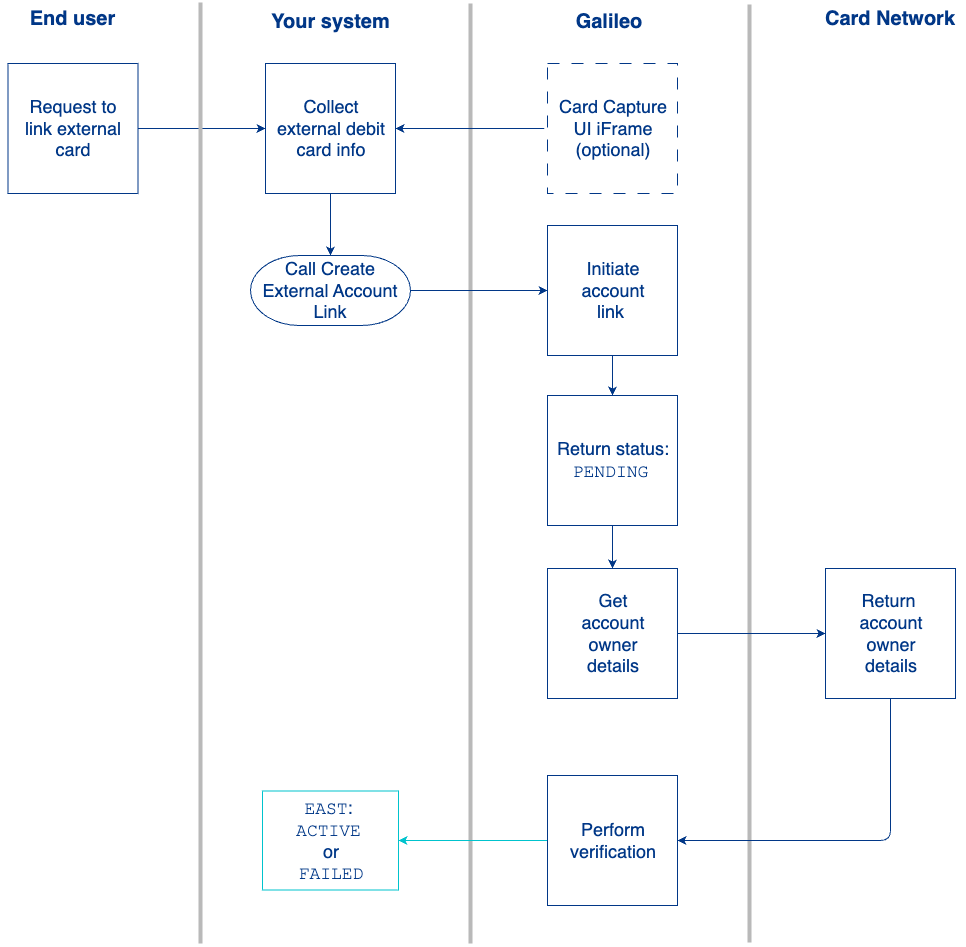
- The account holder requests to link their account in your provided interface.
- Your interface collects the external debit card information.
- You call the Create External Account Link endpoint with these values:
accountNo— 12-digit PRN of the Galileo account.ownerobject:type—GALILEO.detailsobject:type—CARDcardNumber— PAN of the external debit cardcardUseOwnerAddress—trueorfalsecardAddress— Required whencardUseOwnerAddress: falsecvv— 3-4 digit verification code for the external cardcardExpirationDate— Expiration date for the external card in"YYYY-MM"formatvalidationobject:type—CARD
- Galileo initiates the account link and returns HTTP 200 containing an
externalAccountLinkId. At this stage, the bank account link is pending because it is awaiting verification. - Galileo requests the account owner details from the card network to confirm the account holder's identity.
- The card network returns the account owner details to Galileo, and Galileo performs the verification.
- Galileo uses the
external_account_status_changeevent to send you the result of the verification process (ACTIVEorFAILED).
Transfer request
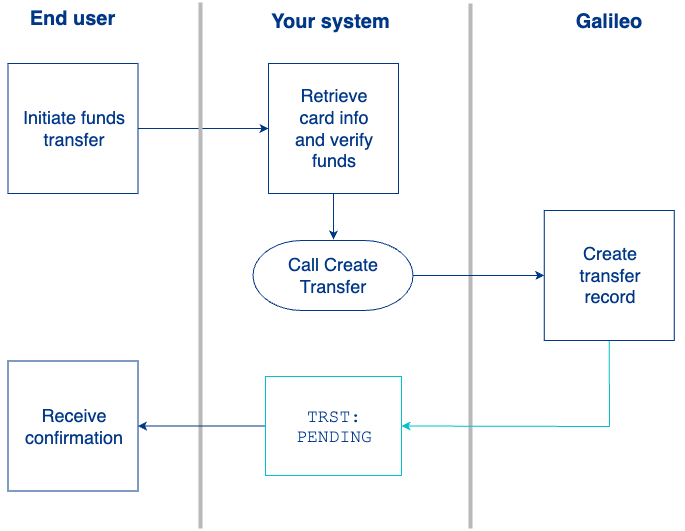
This flow is entirely synchronous, based on an active link status:
- The account holder requests to fund their account.
- Your system calls the Create Transfer endpoint, with the
externalAccountLinkIdreturned in the Create External Account Link endpoint. - Galileo creates a transfer record starting the AFT or OCT asynchronous flow.
- Galileo sends the
transfer_status_changemessage to your system with the statusPENDING. - Your system displays a confirmation screen to the account holder to inform them that the request has been submitted.
Scenario A: Pulling funds (AFT)
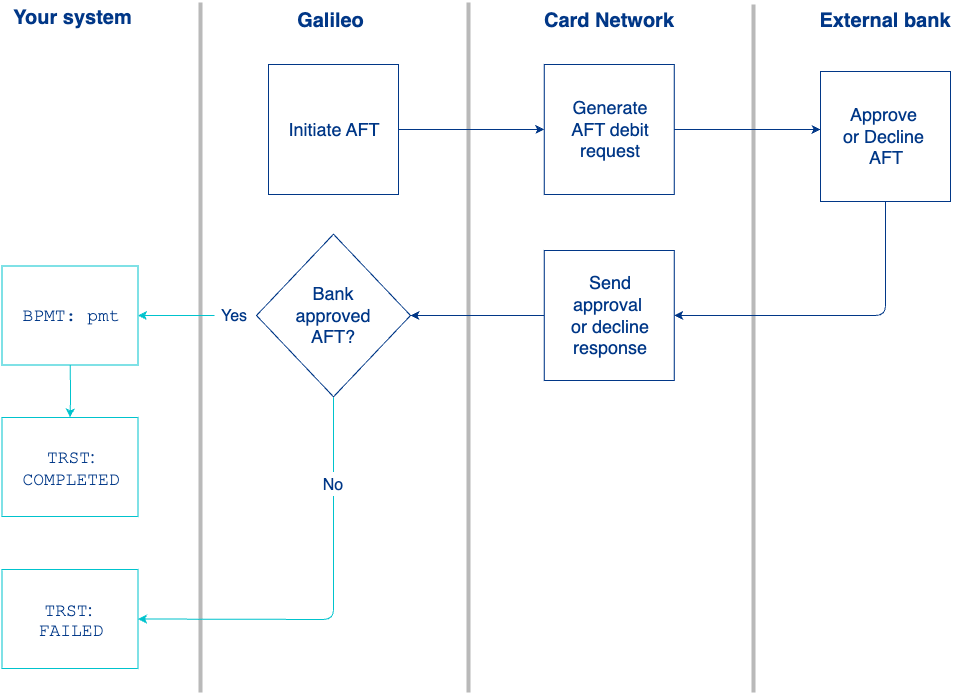
- Galileo initiates an AFT and sends a standard authorization request to the card network.
- The card network routes the request to debit the external bank.
- The external bank approves or rejects the AFT and sends the response back to the card network.
- The card network sends the approval or rejection back to Galileo.
- If the transaction is successful, Galileo credits the account holder's Galileo account and sends the
BPMT: pmtevent message. - Galileo sends the
transfer_status_changemessage to your system with the statusCOMPLETEDorFAILED.
Scenario B: Pushing funds (OCT)
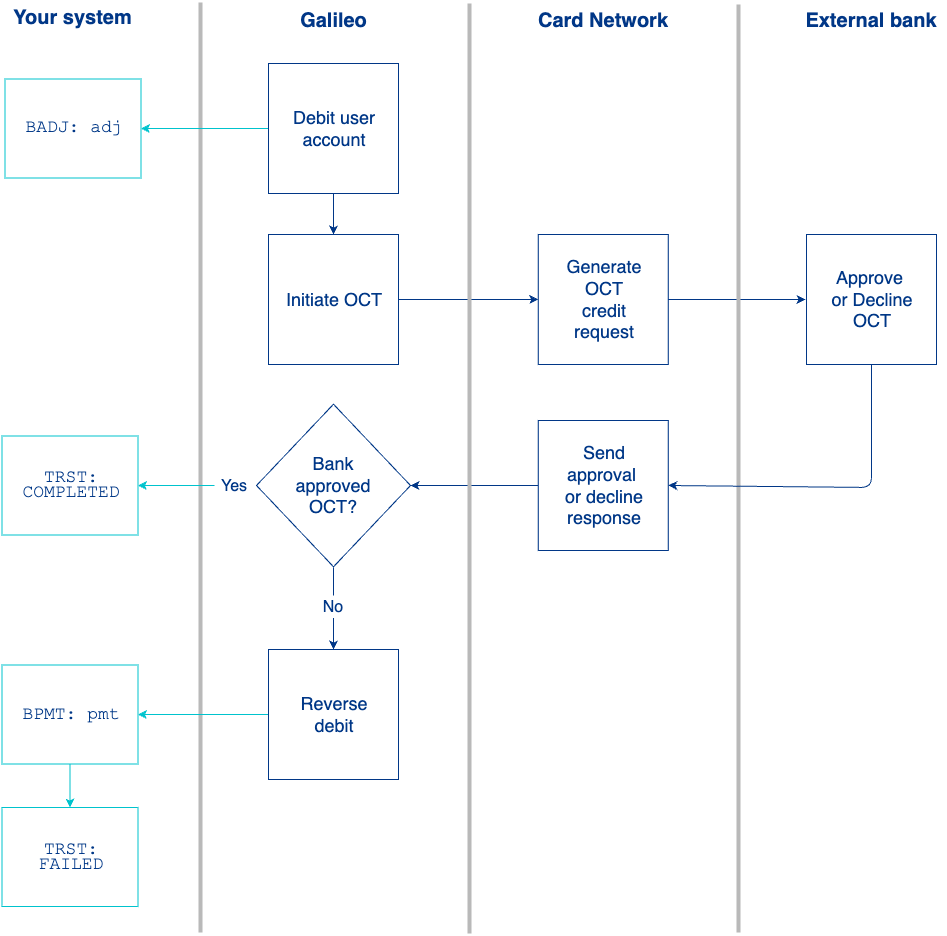
- Galileo debits the account holder's linked account and sends the
BADJ: adjevent message. - Galileo initiates an OCT by sending a payment authorization request to the card network.
- The card network routes the request to credit the external bank.
- The external bank approves or rejects the OCT and sends the response back to the card network.
- The card network sends the approval or rejection back to Galileo.
- If the transaction fails, Galileo reverses the debit, credits the funds back to the user, and sends the
BPMT: pmtevent. - Galileo sends a
transfer_status_changemessage to your system with the statusCOMPLETEDorFAILED.
The settlement process is the same as with card purchases, where funds are settled at the end of each day.
Events API
Galileo uses the Events API to send you real-time status updates about your external account links and instant debit transfers. You must configure your system to listen for two events during this integration: external_account_status_change and transfer_status_change .
external_account_status_change
During the account linking process, Galileo sends the EAST: external_account_status_change event any time the status of the external account link changes. Galileo first triggers this event when it generates a token and sends it to you in the Create External Account Link response. Subsequent status changes also trigger this event message.
The possible values for this status are:
PENDING— The link to the external account is being established.ACTIVE— The link to the external account has been successfully set up.FAILED— The link to the external account process failed.DELETED— The link to the external account has been removed.
When status: FAILED, the status_reason field is populated with "Reason: AO Validation Failed". Failures typically occur due to one of the following conditions:
- Insufficient funds — The external bank account has a balance lower than the requested transfer amount.
- Invalid card — The card has expired or the CVV is incorrect.
- Network decline — The card network or issuing bank blocked the transaction due to risk or fraud limits.
transfer_status_change
During the funds transfer process, Galileo sends the TRST: transfer_status_change event any time the status of the transfer changes. Galileo first triggers this event when the transfer status transitions to a new state, such as when a pending transfer completes, fails, or is canceled.
Depending on the transfer status and payment method, the available balance may or may not change. If the balance does change, Galileo sends the BPMT: pmt event for an AFT transaction, or the BADJ: adj event for an OCT transaction.
The possible values for this status are:
PENDING— The transaction is being processed.COMPLETED— The funds have been transferred successfully.FAILED— The transaction failed at the network or bank level.CANCELED— The transaction was canceled before completion.
When status: FAILED, the status_reason field is populated. Failures typically occur for one of the following reasons:
- Insufficient funds — The external bank account has a balance lower than the requested transfer amount.
- Invalid card — The card has expired or the CVV is incorrect.
- Network decline — The card network or issuing bank blocked the transaction due to risk or fraud limits.
Viewing Instant Debit Transfers
Use the Payment Hub API and Program API to retrieve details about instant debit transfers and display accurate balances and transaction histories to your account holders.
Payment Hub API
Use Get Transfer to retrieve information about an existing debit transfer that was initiated by Create Transfer.
Considerations
The following considerations are specific to CARD transfers:
accountNomust match the Galileo account associated with the card transfer.transferIdmust be a valid transfer identifier created through Create Transfer.directionalways returnsOUT, as funds move out from the Galileo account to the external debit card.sourceAccountalways returns type:GALILEO, indicating it's a Galileo-managed account. No additional details are provided for Galileo accounts in the response.railInformationalways returnsnull.paymentMethodalways returnsCARD.
Program API
To retrieve transaction details for your user interface, use the following endpoints:
- Get Transaction History — Use this to display a list of all posted transactions, including Visa Direct transfers.
- Get Account Overview — Use this to view the account holder's current balance and recent activity.
When your system calls these endpoints, Galileo returns the trans_code and description. Use this data to identify and display the corresponding transaction details to your account holders.
Reconciliation
You can track and reconcile instant debit transfers using Raw Data Files (RDFs) and the Program API. Use these resources to identify successful transfers and reversals, and verify that your internal ledger matches Galileo's records.
Use the Posted Transactions RDF to reconcile settled transfers and identify originated AFTs and OCTs for Visa Direct. When reviewing this file, refer to the TRANSACTION CODE/ TYPE field to identify the specific trans_codes associated with instant debit transfers:
| trans_code | act_type | otype |
|---|---|---|
PMVF | PM — Payment | VF — Visa Direct AFT A2A (pull) |
ADvF | AD — Adjustment | vf — Visa Direct AFT A2A (pull) - Reversal |
ADVO | AD — Adjustment | VO — Visa Direct OCT A2A (push) |
ADvo | AD — Adjustment | vo — Visa Direct OCT A2A (push) - Reversal |
Daily reconciliation flow
Galileo and Sunrise Bank manage the network-level reconciliation so you can focus on your internal ledger.
- Galileo receives Visa settlement summary (VSS) files from the card network daily and sends them directly to Sunrise Bank.
- Sunrise Bank compares the VSS data against the activity in your Posted Transactions RDF to ensure the network totals match the ledger totals.
- Your finance team monitors the Posted Transactions RDF to ensure your internal system matches the activity recorded by Galileo.
You do not need to process VSS files or perform manual network-level reconciliation.