

Account Linking via Mastercard Data Connect
Account Linking via Mastercard Data Connect gives your account holders a secure way to connect their external bank accounts to their accounts in your program, letting them instantly share critical banking data like account and routing numbers, balances, and ownership with your application. You can implement this feature regardless of whether Visa or Mastercard is your primary network, or whether your account holders have Visa- or Mastercard-branded cards.
Linking accounts makes it easier for customers to view their financial information in one place and more easily move money between accounts. This solution means users don't need to manually enter their account and routing numbers, which can be a slow and error-prone process.
This product uses three Mastercard services to link accounts for funds transfer via ACH:
- Account Details — Instantly retrieves the account and routing numbers using your account holder's secure bank login.
- Account Owner (AO) Verification — Provides the account holder's identity information from the external bank.
- Mastercard Balance Check — Checks for available funds in real time to prevent transfer failures due to NSF.
Galileo complements Mastercard's AO verification service by performing an internal verification to confirm the user's identity before they attempt to move funds. This multi-factor approach provides a more robust and secure account verification process, rather than a simple data pass-through.
Mastercard Data Connect is designed for account holders to link accounts they personally own (the "me-to-me" use case).
Note
This method is not intended for linking or facilitating transfers to or from accounts owned by different individuals.
Key benefits for you
- Increase account activation — Improve sign-up and funding completion rates by removing the friction of manual account entry.
- Reduce fraud risk — Authenticating with external bank credentials makes it significantly harder for fraudsters to link unauthorized accounts.
- Fewer ACH returns — Reduce the number of returns from incorrect account information and fraud by using robust account-ownership verification.
- Maintain compliance — Adhere to Nacha's WEB debit account validation rule.
- Mitigate NSF risk — Use the optional Balance Check via Mastercard Data Connect feature to reduce returns due to NSF.
Key benefits for your account holders
- Streamlined experience — Provide an instant and secure linking process with no manual data entry or delays from using micro-deposits.
- Enhanced control — Give your account holders a secure, transparent way to provide explicit consent for and manage access to their financial data.
How it works
This is a high-level overview of the workflow that integrates the Mastercard Connect SDK in your application with Galileo's APIs. For more details, refer to the flowchart in Setting Up Account Linking via Mastercard Data Connect.
- Initiate the SDK — The workflow begins in your application when your account holder chooses to link an external account, and your application launches the Mastercard Data Connect SDK.
- Account holder authentication — Your account holder selects their external bank from a list and securely authenticates using their online banking credentials. Mastercard's interface handles this process without exposing their credentials to your platform.
- Request account link — After successful authentication, you call a Galileo endpoint to establish the link.
If you are currently using Galileo for ACH, you will need to work with Galileo to have your system call the new account linking endpoints instead of existing ACH endpoints. These new endpoints allow for the enhanced verification that happens in the next step. - Verify account ownership — In the background, Galileo performs enhanced verification using the account owner details provided by Mastercard's AO service. Our system compares the name and other key data points, including email, phone, and other details against the account holder information you have on file in the Galileo system. A sophisticated matching process determines if the information matches.
- Receive status update — Galileo sends you an account event to confirm that the verification status is either
ACTIVEorFAILED.
After successfully linking an account, your account holder can initiate funds transfer using whatever ACH method(s) your application offers.
Note
To check for available funds before a transfer, refer to the Balance Check via Mastercard Data Connect guide.
Account holder experience
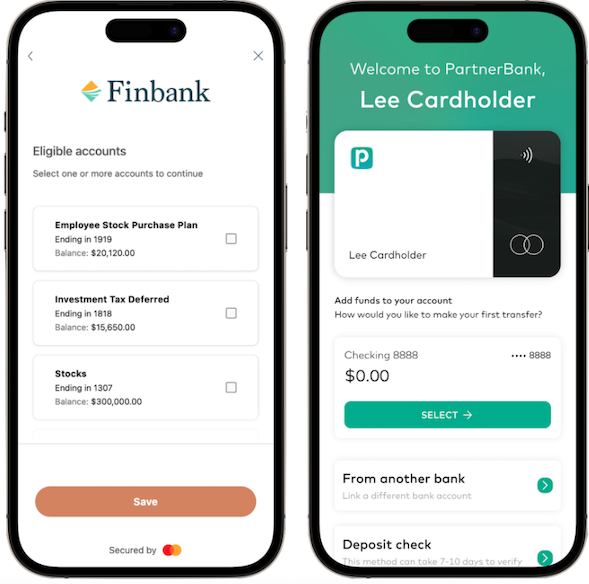
Mastercard's Connect SDK offers flexible integration options. When your account holders want to link their external accounts from your app, their experience can be as simple as this:
- Navigate to your app or web interface.
- Select the option to connect a bank account.
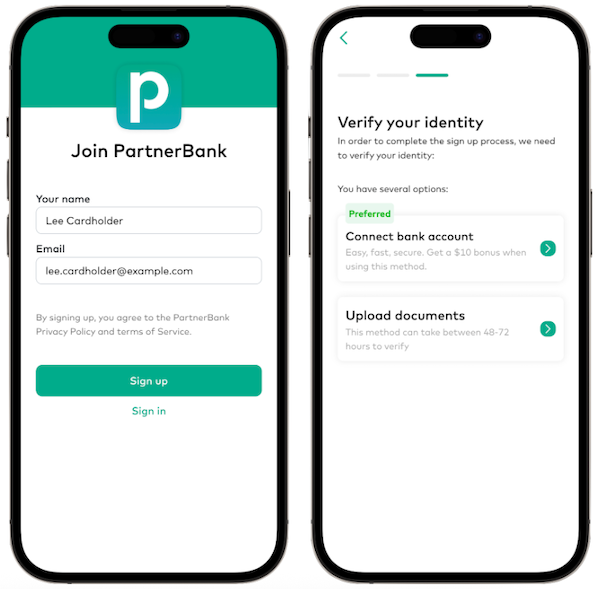
- Search for and select the external bank.
- Enter their external banking credentials into the secure Mastercard interface.
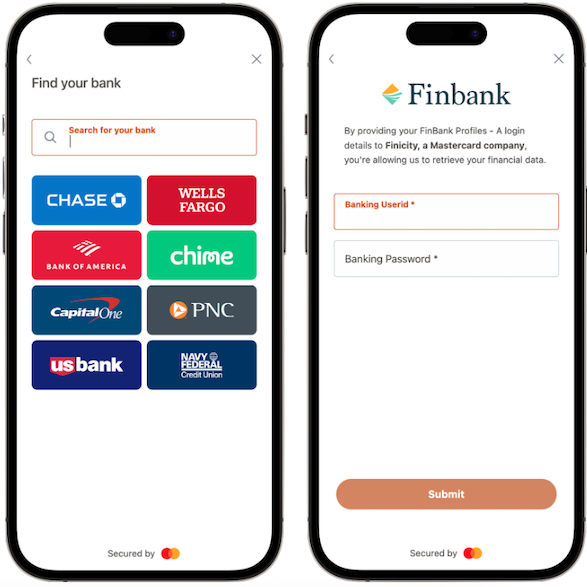
- Select the specific account (e.g., "Checking") to link and grant permission.
- Receive a confirmation in your app that the account is successfully linked.
Use case: New account funding
Reed decides to open a new debit account with your organization, PartnerBank, and needs to fund it from his existing Finbank account. Reed navigates to the "Add Funds" section of your PartnerBank app and selects the option to link his bank. He chooses Finbank from the list and securely logs in with his Finbank credentials. After selecting his checking account, the link is established and verified in seconds.
Implementation
To enable Account Linking via Mastercard Data Connect, you are responsible for integrating with Mastercard through its Connect SDK. Galileo performs the required back-end setup to configure your program.
For detailed, step-by-step instructions on implementing this product, see the Setting Up Account Linking via Mastercard Data Connect guide.