

Setting Up Account Linking via Mastercard Data Connect
This guide explains how to create and manage links to external accounts using Mastercard Data Connect. Before performing this procedure, see the Account Linking via Mastercard Data Connect guide for general information on the user experience and use cases.
Result of following this procedure
Account holders can use your interface to link an external account that they own to an account they hold with you.
Prerequisites
- You must integrate with Mastercard's Connect (Full or Lite) SDK. Refer to Mastercard's SDK documentation for details.
- Galileo must perform some setup steps on the back end to enable this feature to work with your system.
- If you are currently using Galileo for ACH, you will need to work with Galileo to have your system call the new account-linking endpoints instead of ACH endpoints.
Workflow
These are the entities involved in setting up Account Linking via Mastercard Data Connect:
- Account holder — Your customer, who has at least one account on your platform
- Your system — Your mobile app or web page, which has a control to launch the account linking process
- Galileo — The Galileo system
- Link provider — An entity that securely interfaces with the account holder's external bank so your system can access the external bank account. Right now, Galileo supports only Mastercard as the link provider.
- External bank — Houses the account holder's external bank account
Use the following diagram and corresponding steps to understand how to implement Account Linking.
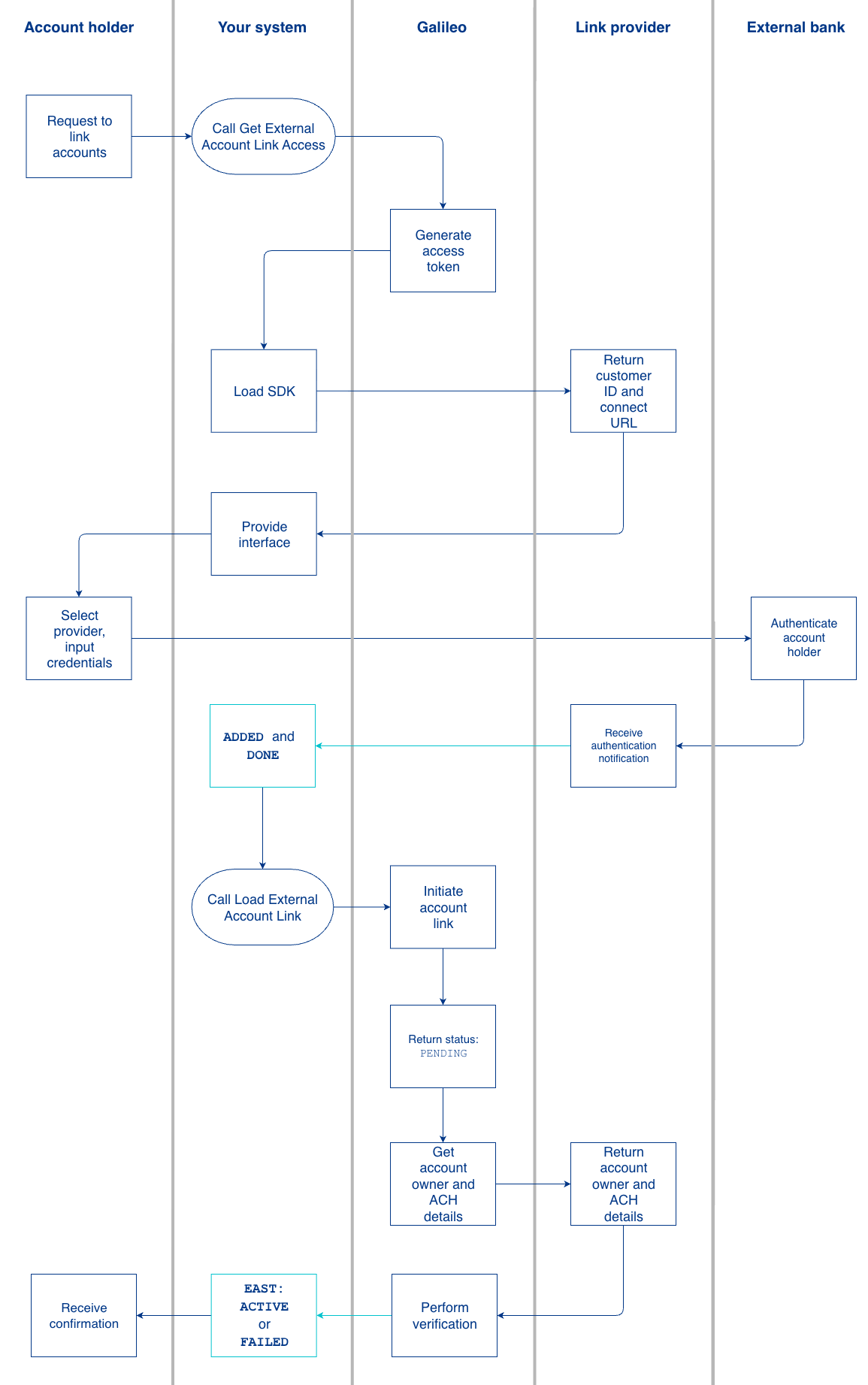
- The account holder requests to link their account.
- You call the Get External Account Link Access endpoint to start the access token creation process with these values:
accountNo— PRN of the account on your platform.integration— Finicity.
- Galileo generates and returns an access token:
type— The type of token being returned. For Account Linking via Mastercard Data Connect, this will beFINICITY_TOKEN.value— The actual token value, refreshed every 2 hours.appKey— Static value created by Mastercard, needed to make calls to Mastercard Data Connect.expirationTimestamp— Expiration time forvalue.
- You pass the access token and load the SDK required to communicate with your link provider, in this case Mastercard Data Connect, which sends a request to create a customer ID and connection URL.
- The link provider returns the customer ID and connection URL.
- You provide the interface for the account holder to specify their external account information.
- The account holder uses your interface to select their external bank or financial institution and input their credentials.
- The external bank authenticates the user.
- The link provider uses webhooks to communicate that the authentication was successful.
- You call the Load External Account Links endpoint, which causes Galileo to initiate the account link.
- As part of the Load External Account Links endpoint response, Galileo sends your system an HTTP response to communicate a pending status.
- In the background, Galileo begins verifying the account by requesting account owner and ACH details from the link provider.
- The link provider returns the account owner and ACH details.
- Galileo performs internal verification against its customer records to confirm the user's identity.
- Galileo conveys the result of the verification by sending the
EAST: external_account_status_changemessage with the status (ACTIVEorFAILED). - The account holder sees a confirmation of a successful link or failure on your app.
Events API
During the external account link process, Galileo sends the EAST: external_account_status_change event any time the status of the external account link changes. This event is first triggered when Galileo generates a token and sends it to you in the Load External Account Links response. Subsequent status changes also trigger this event message.
The possible values for status are:
PENDING— The link to the external account is being established.ACTIVE— The link to the external account has been successfully set up.FAILED— The link to the external account process failed.DELETED— The link to the external account has been removed.
FAILED status
FAILED statusWhen status: FAILED, the status_reason field is populated with "Reason: AO Validation Failed".
This failure typically occurs due to one of the following conditions:
- Validation mismatch — The account owner details provided by the link provider did not sufficiently match the customer information on file in Galileo's system.
- Duplicate data — A duplicate external account already exists with the same banking details, or the same external account link ID exists with different banking details.
- Provider availability — Galileo acts as the intermediary between your application and the link provider. If the provider is unreachable or experiencing an outage, the link process fails.